
SSE user guide
Receive and route a request
Create a request, check intake, route the search, and keep the response clock current.
Create or import the incoming request, check its details, and assign the search. Keep receipt and response-clock decisions with the request.
Create a sample request
In the public demo, choose Sample request. Describe the Records requested, answer the form’s questions, and enter invented contact details or choose Make this request anonymously.
Confirm I am using invented sample information and select Submit request. The new entry appears in Requests with a readable reference. This does not submit an OPRA request to a municipality.
Import and check a request PDF
Alternatively, select Import PDF from Requests. Choose a PDF, enter the Date received by the custodian (New Jersey), select How it arrived, and import it. Responsive records belong in the Records workspace.
Compare the extracted details with Open original PDF. Choose Mark review complete only if they are accurate. If details are wrong, leave intake unreviewed; extracted fields do not currently have an editor.
Assign the department search
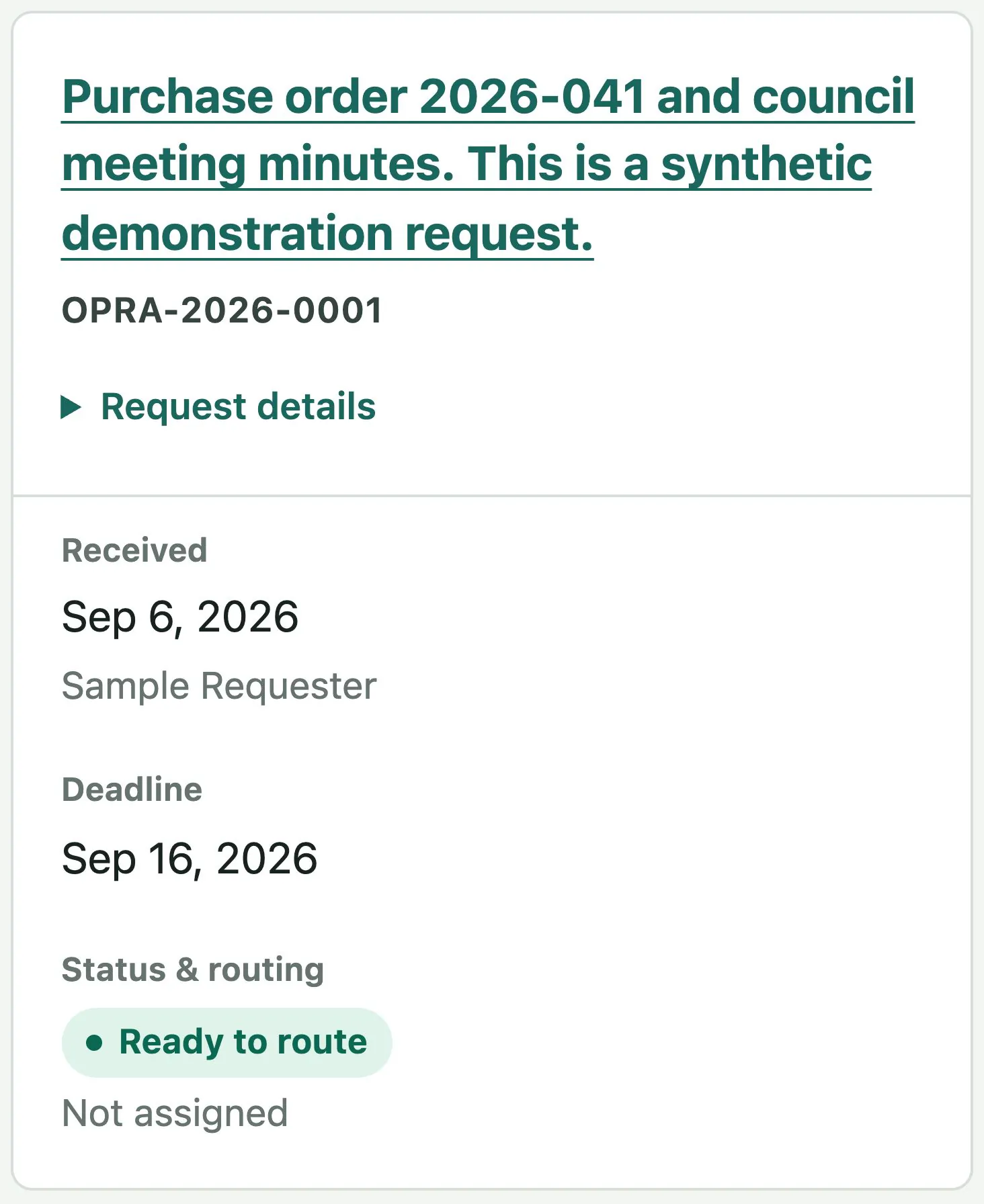
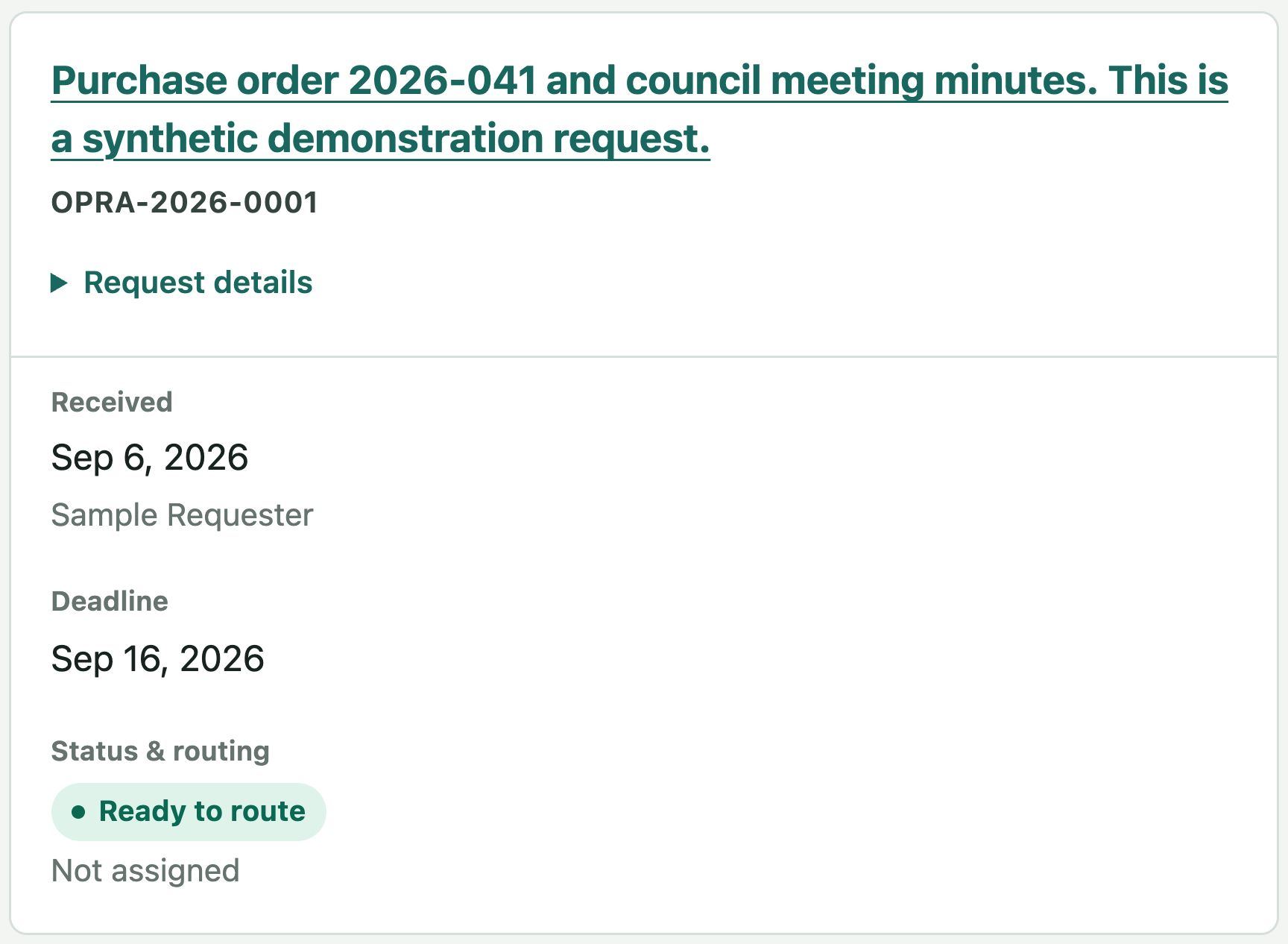
Open the request overview and finish intake review. Under Department routing, choose the department and handoff method, add search instructions, and select Route to department.
Choose in-app routing, an email handoff, or a Printed cover sheet. Print routing sheet produces the paper handoff.
Email handoff prepares a draft. Staff send it through their approved email process and select I sent this email to record that action. Bellwether does not send or verify the email.
Confirm the response clock
Under Request clock, open Set up the clock, confirm receipt and classification, and select Save clock event. Record later clarification, extension, storage, or correction events with their reasons.
Record notices after they are sent through the agency’s process. The custodian checks applicable rules, closures, and circumstances. A preservation hold does not pause the response clock.
Check duplicate and numbered-copy options
The list can flag matching normalized email addresses and descriptions. Mark the duplicate or keep it separate; the decision does not merge, delete, close, or alter the deadline of either request. Reimporting the same PDF points to the existing request.
Apply Bates numbers creates a separate numbered copy of an imported PDF. It does not replace the retained original.
For clock review: GRC Custodian’s Handbook and OPRA statute.