
SSE user guide
Review records and prepare a release
Collect records, save review decisions, prepare a response, and download the approved package.
Collect records against the requested items, inspect each record, and approve the response package. An original and its release copy remain separate.
Collect records against each item
From the overview, choose Review records and respond. In Records, select Add item for each part of the request.
Use Search samples, select a result, and choose Collect this record and Collect selected record. Or upload a PDF or UTF-8 text file with Collect file. Associate it with the item it answers.
Search results are not collected automatically. Public search uses synthetic files. Check file limits before uploading.
Inspect the original and save a decision
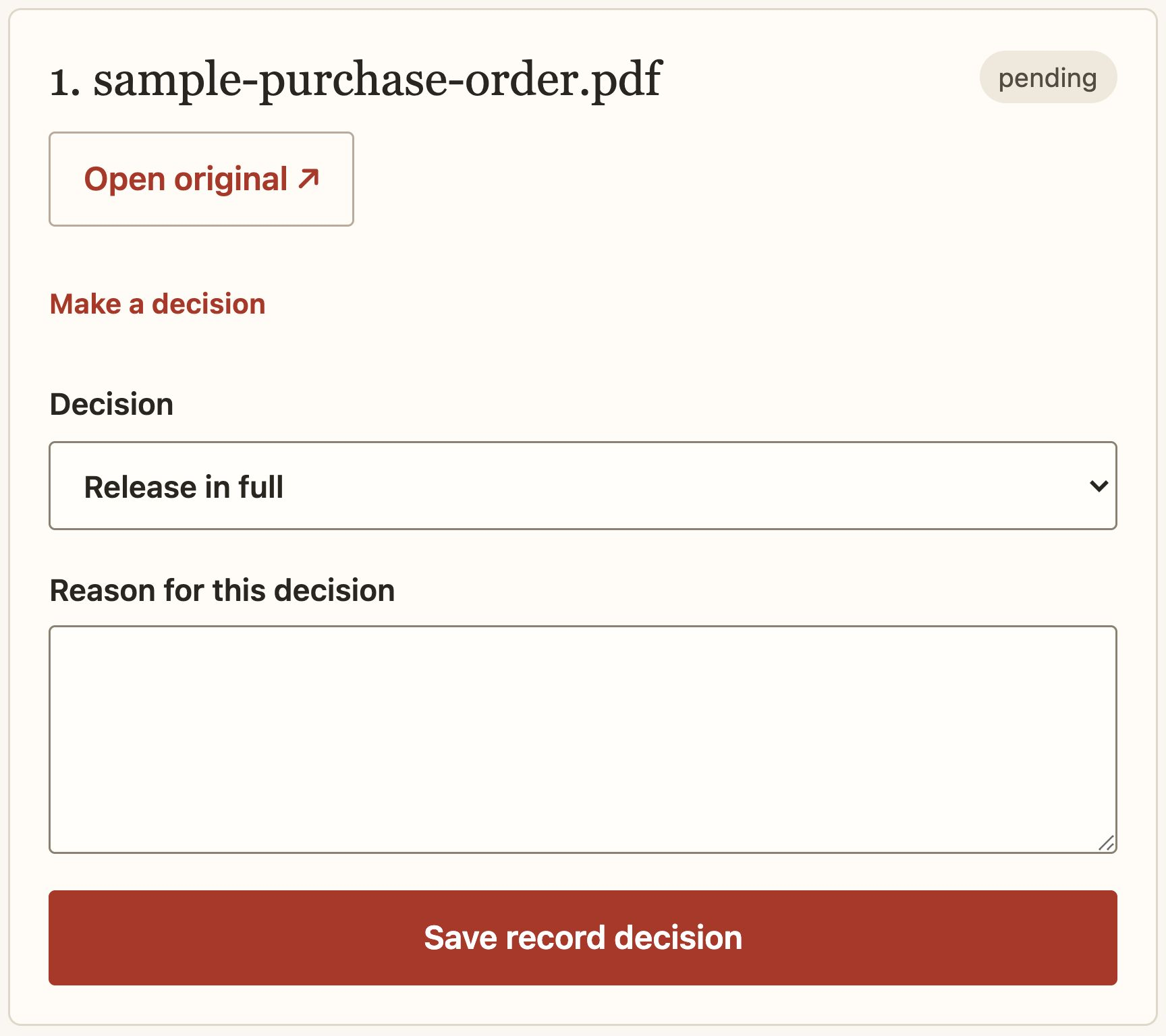
Open Review, inspect the original, and choose Make a decision. Select release in full, release with redactions, withhold, or not responsive. Enter the reason; redaction and withholding also need the reviewer’s specific authority.
Save the record decision and select Inspect release copy before continuing.

PDF redaction
Mark the page regions to remove, using drag selection or Keyboard region controls. Saved copies are rebuilt from page images with the masks burned in. Their original searchable text is not retained.
Text redaction
Enter exact, case-sensitive phrases, one per line. A missing phrase produces an error. Save the decision and inspect the resulting text.
Verifier notes — redaction output and authority
Inspect every output. SSE does not automatically identify all sensitive material or decide which exemptions apply.
Answer every requested item
In Response, give each item an outcome and explanation, then select Save item outcome. Outcomes must agree with the record decisions. A full grant needs approved release records; a withholding cannot include released records for that item.
Complete every item and record. The page identifies work that remains.
Review fees and approve the letter
Select Save complete estimate for the itemized estimate. For a nonzero estimate, use Record fee decision. A changed estimate needs a new decision. The demo does not collect money.
Edit the Response letter with the item outcomes and explanations. Replace its delivery placeholder with fictional arrangements for the practice session. Approve the letter and select Save response.
Changes to records, outcomes, or fees can invalidate approval. Review the updated response before approving again.
Create the approved package
Inspect the release copies, confirm package approval, and select Create approved package. Download latest approved package provides the ZIP with the response, manifest, and approved files.
Creating a package does not send it. Record actual delivery records evidence from delivery through another process; use fictional evidence in the demo.
Next, choose the right export and close the completed request.